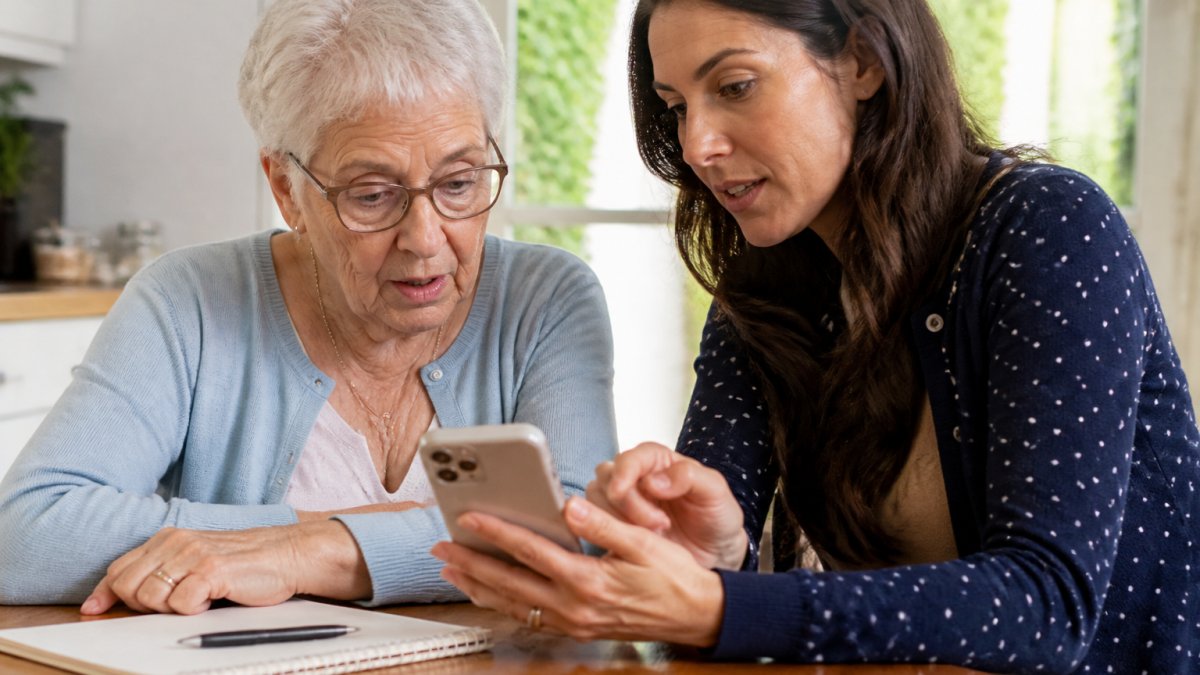
 how-to
How to Help Seniors Use Technology: A Step-by-Step Guide
Table of Contents
- Why Technology Matters for Older Adults
- How to Teach Seniors to Use a Smartphone
- Smartphone Accessibility Settings for Seniors
- Caregiver Tips for Teaching Technology
- Computer Classes for Seniors
- Staying Connected with Family and Friends
- Privacy, Security, and Online Safety
- Troubleshooting Common Problems
- Frequently Asked Questions
Last Updated: October 21, 2026
Why Technology Matters for Older Adults
It isn't about mastering complicated devices, it's about simple tools that fit into real life.
Staying connected reduces loneliness, online services mean fewer trips out in bad weather, and health apps track medications and appointments.
The barrier isn't age, it's approach. When you help seniors use technology with patience and the right starting point, those matter far more than the device itself.
How to Teach Seniors to Use a Smartphone
Teaching a senior to use a smartphone starts with one principle: go slow, celebrate small wins, and build skills one piece at a time. Most attempts fail because they move too fast.
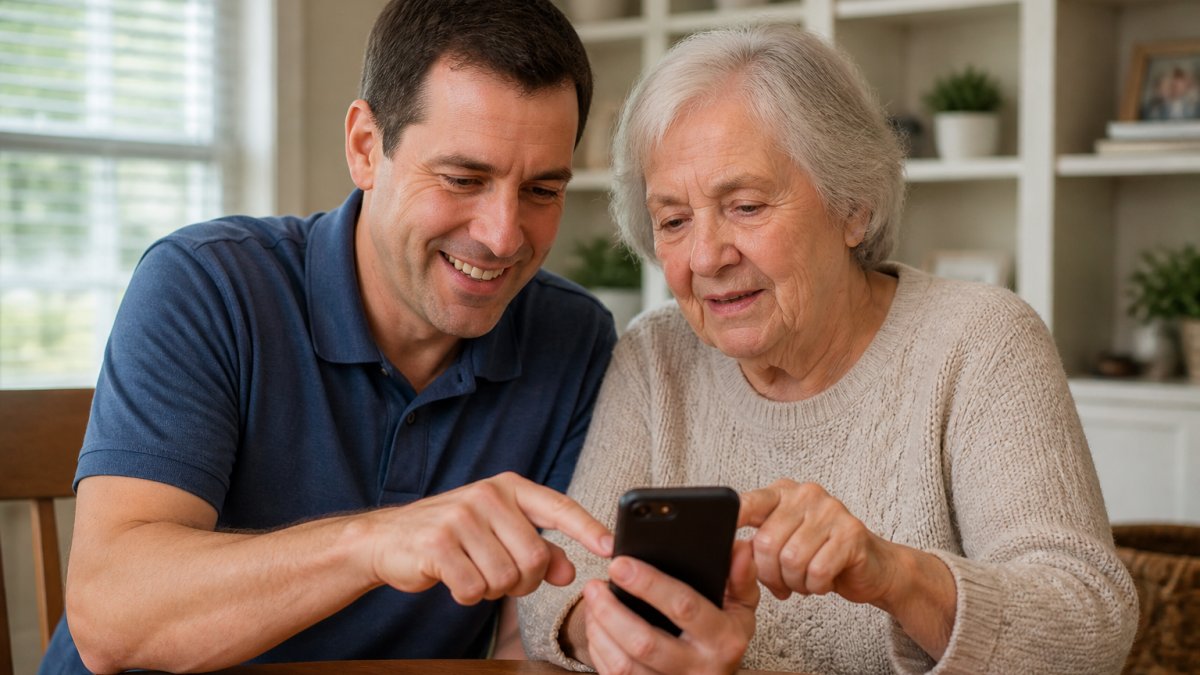
Start with the absolute basics
Begin with the physical phone: how to hold it, where the buttons are, and what the screen does when touched. Let them practice tapping and swiping on an app with large targets.
Spend time on one action:
- Tapping an icon to open an app
- Swiping to go back
- Pressing the home button to return to the main screen
Don't move forward until this feels natural. What's obvious to you is entirely new to them.
Practice one skill at a time
The biggest mistake is teaching five things in one session. Pick one skill, practice for 10 minutes, and stop while they still feel confident.
Good first skills to teach:
- Making a phone call
- Sending a text message
- Taking a photo
Each skill should take 2-3 practice sessions. Repetition builds confidence, and confidence builds willingness to try more.
Use voice commands to simplify interaction
Voice input removes the typing barrier. Saying "Hey Siri" or "Hey Google" fetches weather, news, or directions without typing.
Start with simple commands:
- "What's the weather?"
- "Call [family member name]"
- "Send a text to [name]"
Voice takes pressure off typing and builds momentum.
Smartphone Accessibility Settings for Seniors
Modern smartphones have built-in features for vision, hearing, or dexterity challenges. Turning them on takes five minutes and transforms the experience.
Enlarge text and icons
Bigger text means less eye strain and fewer mistakes. In Settings, find Display or Accessibility and increase text size to the maximum.
Test it immediately:
- Open an email or message app
- Ask if the text is easy to read
- Adjust further if needed
Enable voice-to-text and audio feedback
Voice-to-text lets them dictate messages instead of typing, and audio feedback reads text aloud when vision is limited.
To enable:
- Go to Settings > Accessibility
- Turn on "Speak Screen" or "VoiceOver"
- Test by opening an email and listening to it read aloud
This removes typing entirely. For many seniors, it's the difference between using the phone and avoiding it.
Simplify the home screen
A cluttered home screen overwhelms. Remove unused apps and keep only what matters: phone, messages, camera, and one or two they genuinely want.
Go through the phone together:
- Identify apps they actually use
- Delete the rest
- Arrange the remaining apps in the order they'll use them
A phone with five apps they understand beats a phone with fifty they don't.
Caregiver Tips for Teaching Technology
Teaching technology to an older adult requires patience, it isn't just nice, it's essential.
Use patience and repetition
Asking the same question five times isn't failure. Their brain may not have encoded the first four times. The fifth time, it clicks.
When they ask "How do I make a call?" for the third time, explain it exactly as before, same words, same tone, no sigh.
What works:
- Repeat without frustration
- Use the same words each time
- Let them practice repeatedly
Frustration is the enemy. If they feel judged or rushed, they'll stop trying; if supported, they'll keep going.
Let them lead the learning
Don't take the phone and show them. Hand it over and guide their finger, let them do the tapping, swiping, and typing.
When you do it for them, they learn nothing; when they do it while you guide, muscle memory forms.
Ask questions instead of giving answers:
- "Where do you think you'd tap to open that app?"
- "What button should we press next?"
- "Can you try swiping left?"
This teaches problem-solving, not just button-pushing.
Celebrate small wins
Every successful action, sending a text, taking a photo, making a call, builds momentum.
Say things like:
- "You did that perfectly."
- "See? You're getting this."
- "That's exactly right."
Small wins compound, and they become willing to try harder tasks.
Computer Classes for Seniors
Formal classes add structure and peer learning, and remove the pressure of a family member watching over a shoulder. The trick is knowing what's available, what it costs, and which format fits.
Where to find classes
- Public libraries. Many offer free one-on-one tech help and small-group classes on email, browsing, and video calling. Ask at the reference desk or check the library's events calendar.
- Senior centers and Area Agencies on Aging. These often host free or low-cost workshops and can connect seniors to subsidized devices and internet service. Find the local agency through the Eldercare Locator at eldercare.acl.gov or 1-800-677-1116 (Elder Care).
- Community colleges and continuing education programs. Look for "community education" or "lifelong learning" catalogs. Fees vary widely, and some waive them for older residents.
What to ask before signing up
- Is the class hands-on, with one device per learner, or a lecture?
- What's the class size, and is there a helper for every few students?
- Does it cover the specific tasks the senior wants, such as video calls or texting photos?
Match the format to the learner
Group classes suit people who like structure; one-on-one tutoring suits people embarrassed to ask questions in front of others. A hybrid approach often works best: a weekly group class plus short practice sessions at home with a family member.
Low-cost devices and internet access
Cost is a real barrier, and few guides address it directly. Options worth checking:
- Refurbished devices. Manufacturer-refurbished tablets and phones come with warranties and cost less than new. Buy from the manufacturer or a reputable refurbisher, not a marketplace listing with no return policy.
- Subsidized internet service. The FCC's Lifeline program offers a monthly discount on phone or internet service for eligible low-income households; check eligibility at LifelineSupport.org. Some carriers also offer low-cost home internet plans for qualifying households.
- Library hotspots and device lending. Many libraries lend mobile hotspots and, in some cases, tablets or laptops.
The best class is the one the senior will actually attend. A free library session close to home beats a prestigious program across town that requires a long drive.
Attend the first session together
Sit in on the first class if allowed. You'll learn the instructor's vocabulary, making it easier to reinforce the same steps at home, and spot whether the pace fits before committing to a multi-week series.
Staying Connected with Family and Friends
Technology's greatest power for seniors is connection.
Start with the connection they care about most.
Simple tools for connection:
- Video calls: FaceTime, Google Meet, or Zoom (all free)
- Text messages: Standard texting or WhatsApp
- Photo sharing: Email or simple cloud apps
Help them set up one connection tool and make the first call or send the first message together.
Connection builds motivation: seeing a granddaughter's face on screen makes them want to learn more.
Privacy, Security, and Online Safety
Seniors are prime targets for scams because scammers count on politeness, trust, and unfamiliarity with how accounts work. The goal isn't to scare anyone off technology, it's to set up a few defenses once, then practice a short script.
Set up account recovery before you need it
Most people teach passwords and stop there. The bigger risk is a locked account with no way back in.
- Add a recovery email and phone number. Use one the senior can access and one you can access as a backup, with their permission.
- Write down recovery codes. Many services issue one-time backup codes. Print them and keep them with the password list, not on the device.
- Turn on two-factor authentication (2FA). Prefer an authenticator app or a hardware security key over SMS codes, which can be intercepted through SIM-swap scams. If 2FA feels too complex, start with the email account only.
A simple pattern that works: one password manager, one printed backup sheet kept in a locked drawer, and one family member designated as the recovery contact.
Build a password system they can actually use
Asking a senior to memorize a dozen strong passwords sets them up to fail. Instead:
- Use a reputable password manager with a single strong master password. Many are free for one user.
- For accounts that don't support a manager, use long passphrases of three or four unrelated words rather than birthdates or pet names.
- Never reuse the banking password anywhere else.
Practice the master password together several times in one session. It's the one password they truly need to remember, so it deserves extra repetition.
Teach a short scam script
Scams change constantly, so teach categories and a response, not a list to memorize.
- Urgency is the tell. Real agencies and banks don't demand immediate payment or threaten arrest by phone.
- Gift cards, wire transfers, and cryptocurrency are red flags. No legitimate business or government office asks for payment that way.
- Never click links in unexpected emails or texts. Open the official app or type the address manually.
Report suspected fraud to the FTC at ReportFraud.ftc.gov and to the state attorney general's office. For Medicare-related calls, remind them that Medicare will never call to sell a new card or ask for a Social Security number.
Lock down privacy settings in one sitting
Privacy settings are where most guides stop at "be careful." Do the actual setup:
- Review app permissions and turn off location, microphone, and contacts access for apps that don't need them.
- Set social media profiles to friends-only and turn off public search.
- Disable ad tracking in the phone's privacy settings.
Make it a conversation, not a lecture
Let them ask questions and admit when you don't know an answer. The most protective habit is simple: when in doubt, call you first. Rehearse that sentence until it feels automatic.
Never pressure a senior to share passwords with you "just in case." If they want a backup, use the recovery contact setup above so access is documented and consensual.
Troubleshooting Common Problems
Problems happen. A senior tries something and the screen looks different. An app crashes.
Common issues and fixes:
| Problem | Quick Fix | What It Means |
|---|---|---|
| Screen is frozen | Press and hold the power button for 10 seconds | The app needs to restart |
| Can't find an app | Swipe up to see all apps, then search by name | Apps can be hidden on home screen |
| Text is too small | Go to Settings > Display > Text Size and increase it | Vision needs adjustment |
| Can't hear audio | Check volume buttons on side of phone | Volume may be turned down |
| Accidentally deleted an app | Go to App Store, search for app name, tap Get | Apps can be reinstalled anytime |
| Forgot password | Use "Forgot Password" link and follow steps | Recovery options exist for this |
When something breaks, resist the urge to fix it for them. Walk them through it step by step.
Keep a simple written guide of solutions they can reference. Take screenshots of the steps. Print them out.
Technology shouldn't feel like a burden for seniors, it should feel like a bridge to the people and activities they love. Tools like AskMarty can support this journey by providing daily engagement and gentle reminders that keep seniors mentally active while giving families peace of mind.
Frequently Asked Questions
How can you teach an older adult to use a smartphone?
Start with one basic function at a time, such as making a call or sending a text message. Use large, clear demonstrations on your own phone first, then guide their hands through the same steps on their device. Practice the same skill multiple times over several days before moving to something new. Use voice commands and accessibility features to reduce complexity. Patience and repetition are essential, expect to teach the same task several times before it becomes comfortable.
What accessibility settings can make devices easier for seniors to use?
Increase text size to at least 18-24 points for comfortable reading. Enable larger touch targets (buttons and icons) so they're easier to tap accurately. Turn on voice-to-text for messaging and voice-activated controls for hands-free operation. Use high-contrast display settings and reduce motion effects that can cause disorientation. Many smartphones also offer simplified home screens that show only essential apps, reducing confusion and decision fatigue.
Why is it difficult for seniors to use new technology?
Older adults often face vision changes, reduced dexterity, and unfamiliarity with digital concepts that younger people take for granted. Small text, tiny buttons, and complex menus designed for general audiences don't account for age-related needs. Many seniors also worry about making mistakes, breaking something, or being scammed online. Confidence is a major barrier, past negative experiences or fear of looking foolish can prevent them from trying. Technology designed with seniors in mind removes these obstacles and builds trust.
How should you communicate when helping a senior learn technology?
Use simple, jargon-free language and avoid technical terms. Speak clearly and listen without interruption when they ask questions. Show genuine interest in what they want to accomplish, not just the technology itself. Avoid taking over the device, let them do the tapping and swiping while you guide verbally. Acknowledge frustration without dismissing it, and celebrate progress, no matter how small. Respect their pace and never make them feel rushed or judged for not knowing something.